Automate Assignments with Tags
Manual profile assignment works for a handful of workspaces and stops scaling after that. Tag rules assign profiles automatically: tag the workspace, and every matching rule applies its profiles, including to workspaces enrolled months from now. This guide sets up consistent tags, two rules that treat non-production and production differently, and shows how to verify the result.
Prerequisites
- Admin or Owner role
- Tag-based assignment on your plan, Professional and up (see Billing and tiers)
- Enrolled workspaces (see Adding workspaces)
- The profiles you want to assign (for the cost profile used below, see Automate a weekend shutdown)
Step 1: Tag Workspaces Consistently
Tags drive everything that follows. Apply them in the onboarding wizard, or afterwards from each workspace's detail page. The example below uses one tag:
| Tag | Values |
|---|---|
environment | development, staging, production |
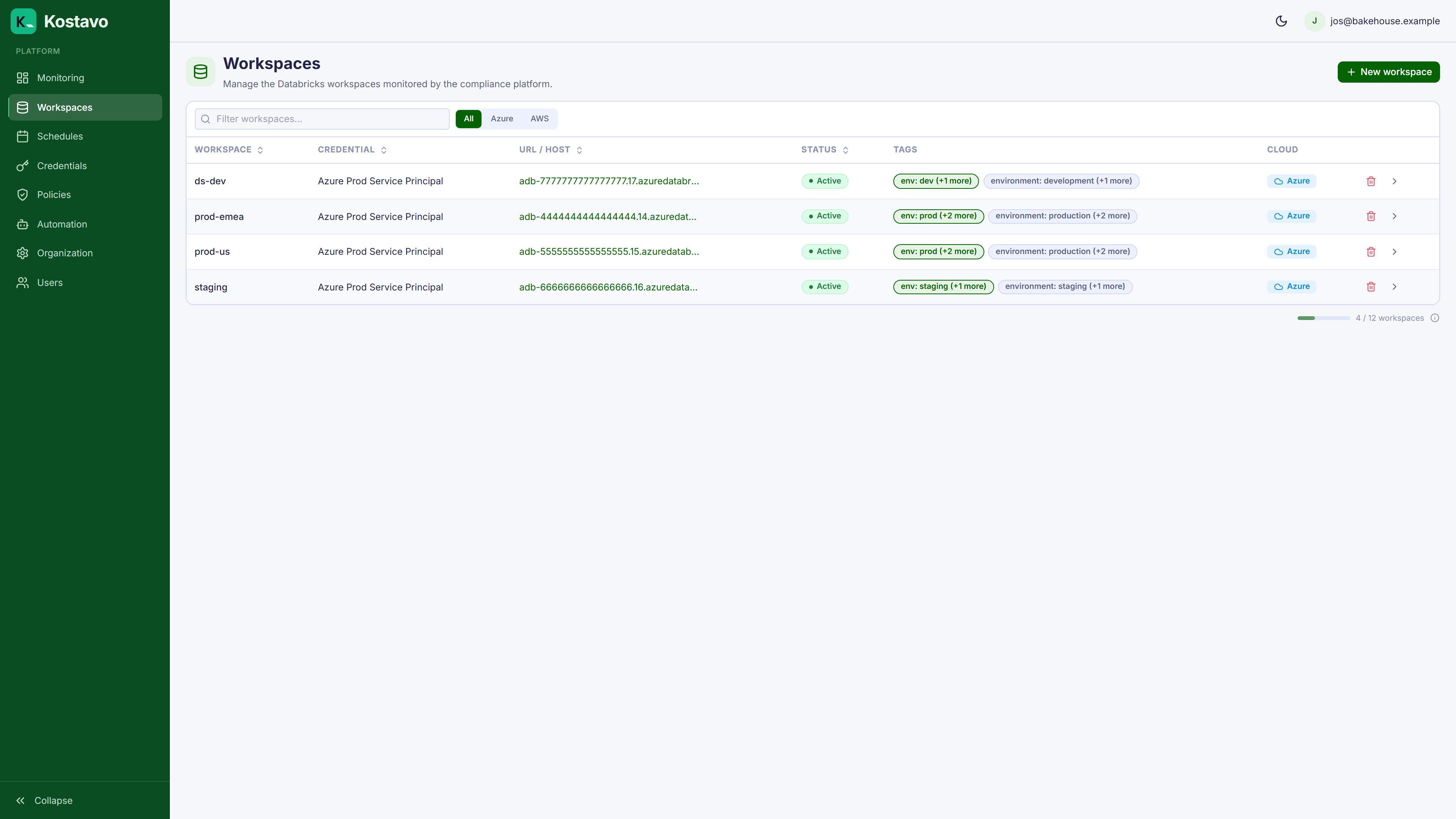
Two sources of tags count here: custom tags you set in Kostavo, and source tags synced from the cloud provider. If the resources are already tagged in Azure or AWS, the source tags may be enough. See Workspace tags.
Key point: define tag templates with allowed values before tagging at scale. environment: dev and environment: development are different strings, and rules match strings.
Step 2: Create the Tag Rules
The example splits the fleet into two governance postures: aggressive cost cleanup for non-production, guardrail baselines for production.
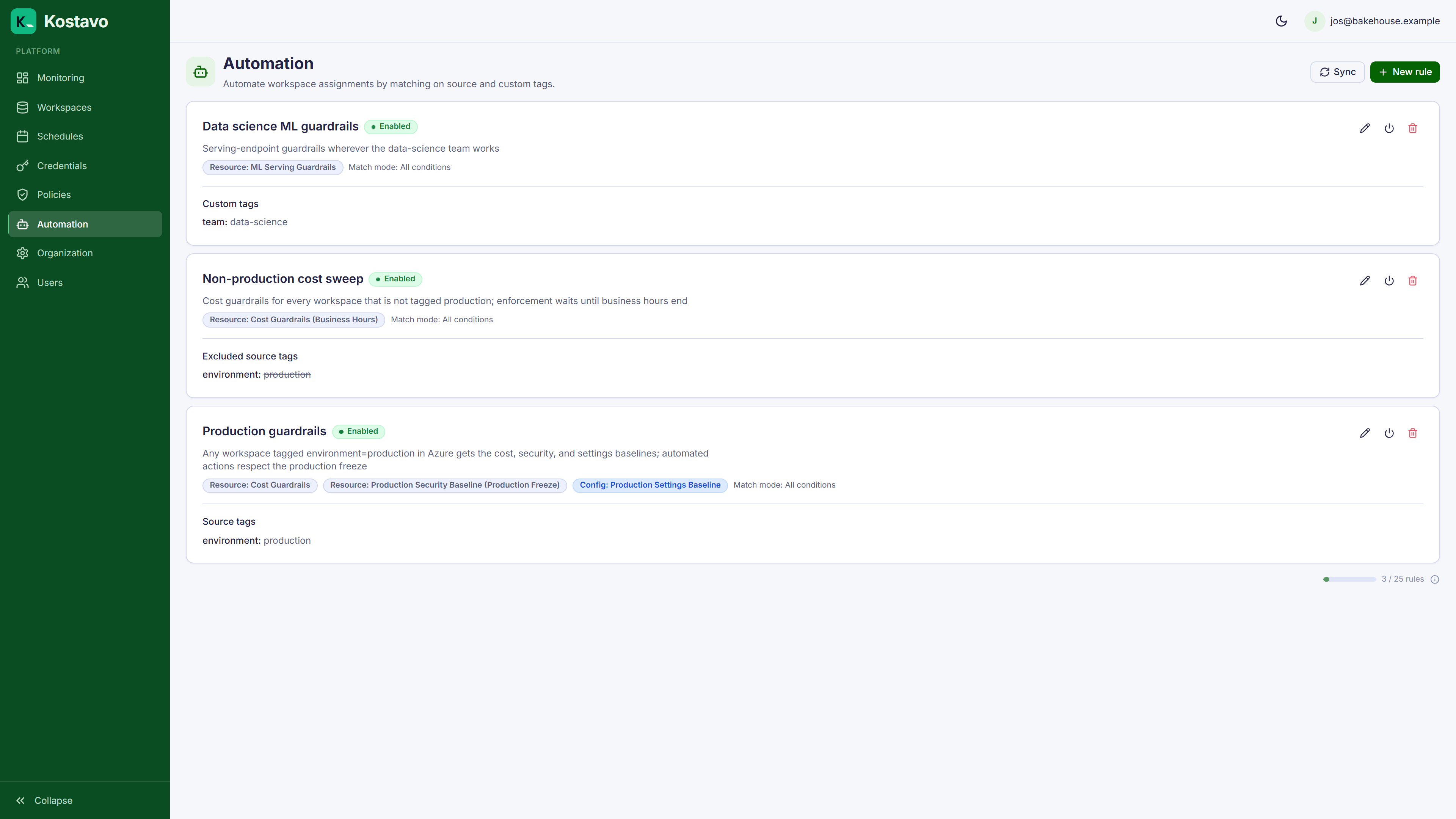
Go to Automation → Tag Rules and create two rules:
Rule 1: non-production cost sweep
- Condition (source tag):
environmentis notproduction - Profile: your cost profile, with the business hours schedule
Rule 2: production guardrails
- Condition (source tag):
environmentisproduction - Profiles: your production baselines. One rule can assign several profiles, each with its own optional schedule: for example a cost profile, a security baseline under a production freeze schedule, and a configuration baseline.
Conditions come in two groups, source tags and custom tags, and the All / Any toggle decides whether a workspace must match every condition or just one. Rules can also match custom tags alone: a rule matching team: data-science follows that team's workspaces wherever they are.
The editor shows a live preview of which workspaces match before you save:
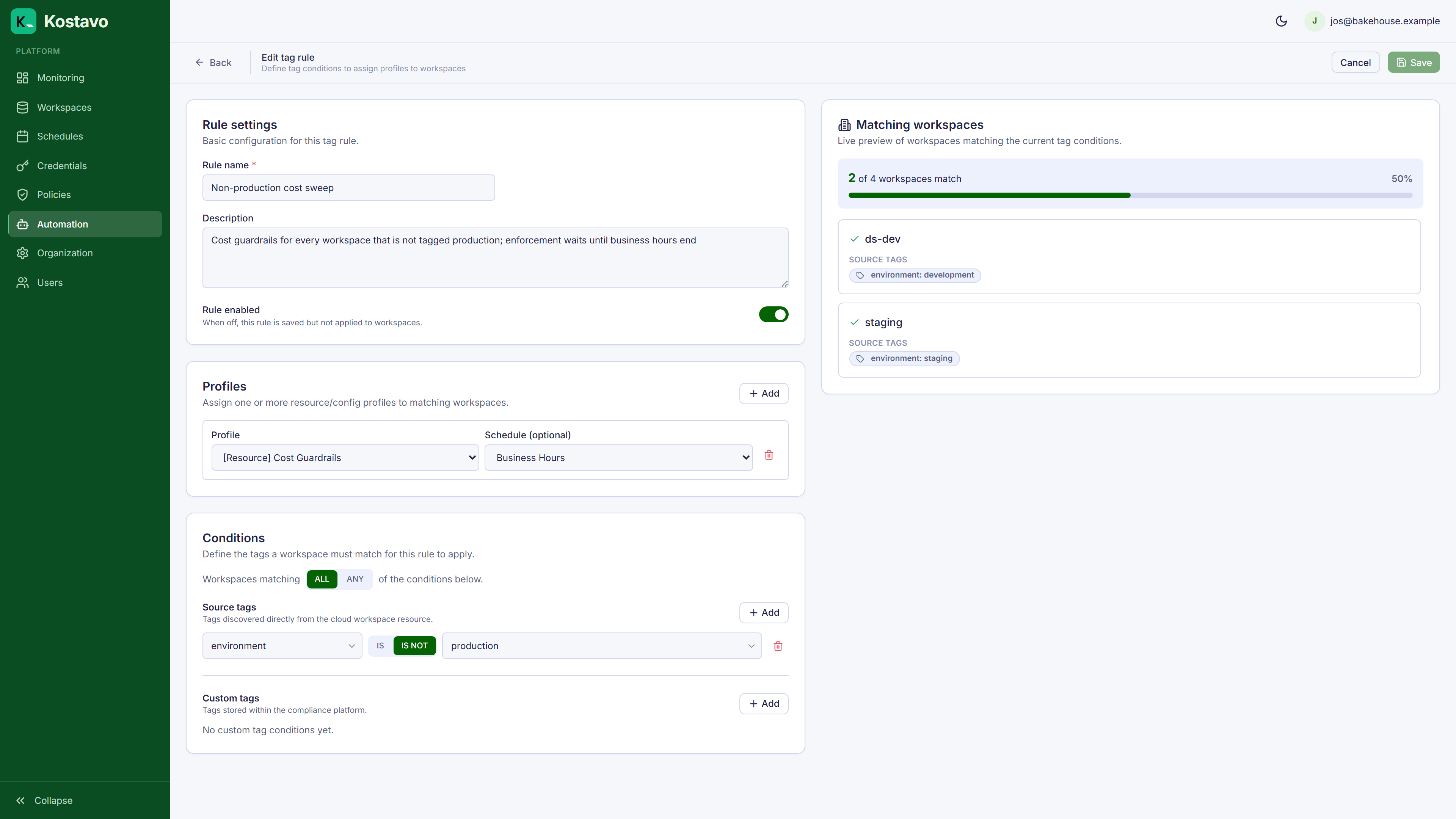
Check the preview against your expectations. A rule matching zero workspaces usually means a tag value typo.
Step 3: Let the Sync Work
Rules are evaluated automatically on every workspace sync and whenever a rule changes. The rule engine:
- Creates assignments for matching workspaces (marked as rule-managed)
- Removes rule-created assignments for workspaces that stop matching
- Never touches manual assignments
A correctly tagged new workspace is governed from its first sync, with no manual assignment step.
Layered Profiles
A workspace matching several rules gets several profiles, and that is by design. A production workspace can carry the team's monitoring profile plus an org-wide security baseline from a separate rule. Each assignment operates independently.
Related
- Concept: Tag rules for conditions, match modes, and sync mechanics
- Concept: Workspace tags for source vs custom tags
- Guide: Automate a weekend shutdown for the cost profile used here
- Guide: Set up Slack and Teams notifications to route findings to the owning team