Tag Rules
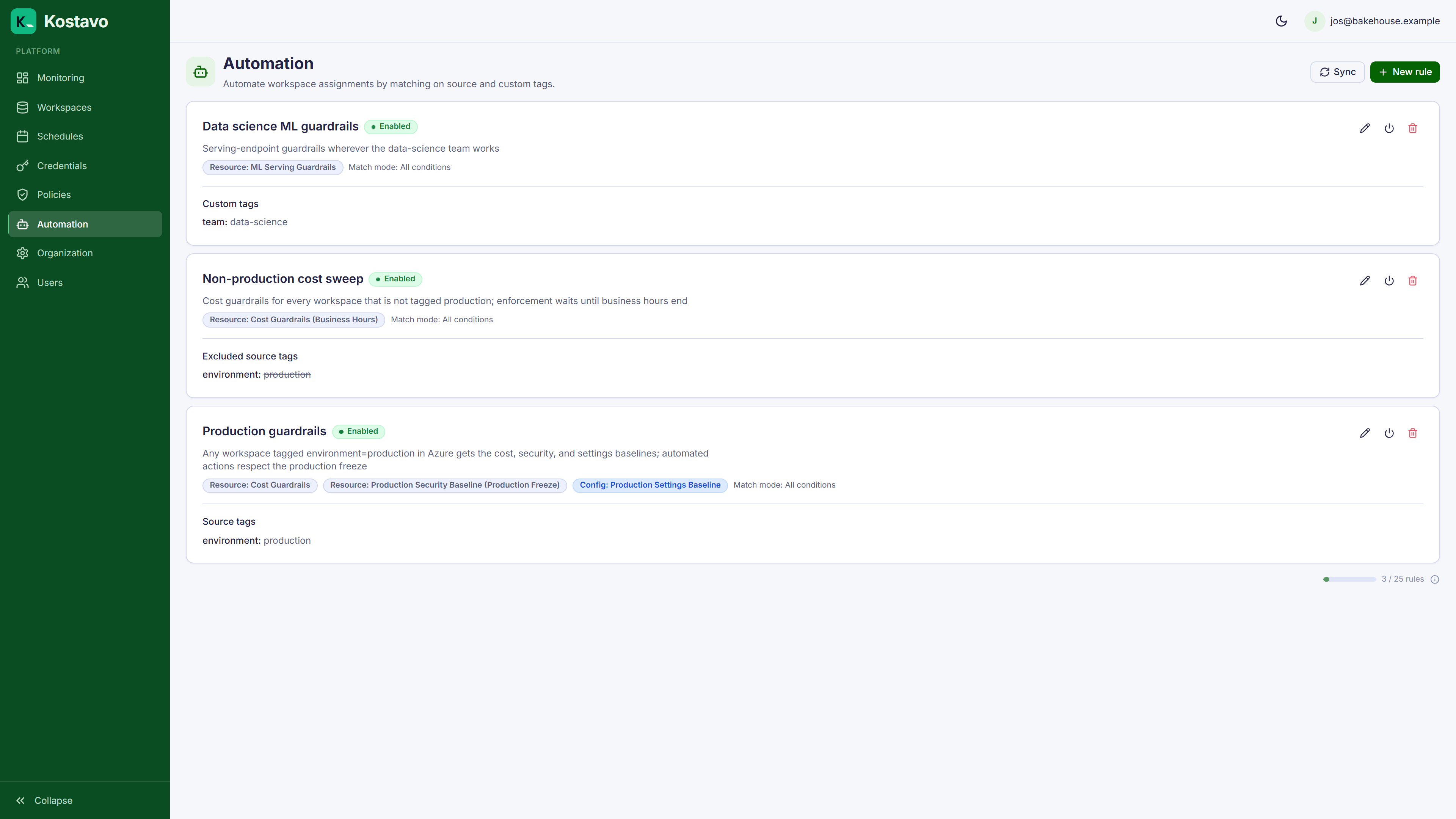
Tag rules automate profile assignments. Instead of manually assigning profiles to each workspace, define rules that match workspaces by their tags and let Kostavo manage the assignments.
How Tag Rules Work
A tag rule consists of:
| Component | Description |
|---|---|
| Name | Descriptive identifier |
| Match conditions | Tag criteria workspaces must meet |
| Match mode | all (AND) or any (OR): whether all conditions must match or any one suffices |
| Profile | The policy profile to assign |
| Schedule (optional) | Schedule to attach to the assignment |
| Enabled | Whether the rule is active |
| Priority | Higher priority wins when multiple rules match the same profile |
Match Conditions
Each condition matches on a tag key with an operator:
| Operator | Behavior |
|---|---|
| equals | Exact match on tag value |
| contains | Tag value contains the string |
| exists | Tag key is present (any value) |
| not equals | Tag value doesn't match |
| not exists | Tag key is absent |
Conditions evaluate against both source tags (from your cloud provider) and custom tags.
Examples
Match production workspaces:
Condition: environment equals "production"
Mode: all
Profile: Security Baseline
Match data engineering team in production:
Conditions:
  - environment equals "production"
  - team equals "data-engineering"
Mode: all
Profile: DataEng Production Governance
Match any PCI-relevant workspace:
Condition: pci-scope exists
Mode: all
Profile: PCI Compliance
Automatic Evaluation
Tag rules are evaluated automatically, with no manual action required:
- On every workspace sync: whenever workspace metadata and tags are synced, all enabled rules are re-evaluated for that workspace.
- On rule changes: when you create or update a tag rule, a full organization-wide evaluation is triggered automatically.
- Manual trigger: you can also click Sync All Rules on the Tag Rules page to force a full re-evaluation.
What evaluation does:
- Evaluates every enabled rule against workspace tags
- Creates new assignments for matching workspaces (source:
tag_rule) - Removes auto-created assignments for workspaces that no longer match
- Leaves manual assignments untouched
Multiple Matching Rules
If a workspace matches multiple rules, each rule creates its own assignment. A workspace can end up with multiple profiles; this is intentional for layered governance.
For example:
- Rule 1:
environment=production→ Security profile - Rule 2:
team=data-engineering→ DataEng governance profile - Result: production DataEng workspaces get both profiles
Manual vs. Automatic Assignments
| Source | Managed By | Sync Behavior |
|---|---|---|
| Manual | User | Never removed by sync |
| Tag rule | Sync process | Created/removed based on rule match |
Auto-created assignments are linked to their tag rule. If you delete an auto-created assignment manually, the next sync may re-create it if the workspace still matches the rule.
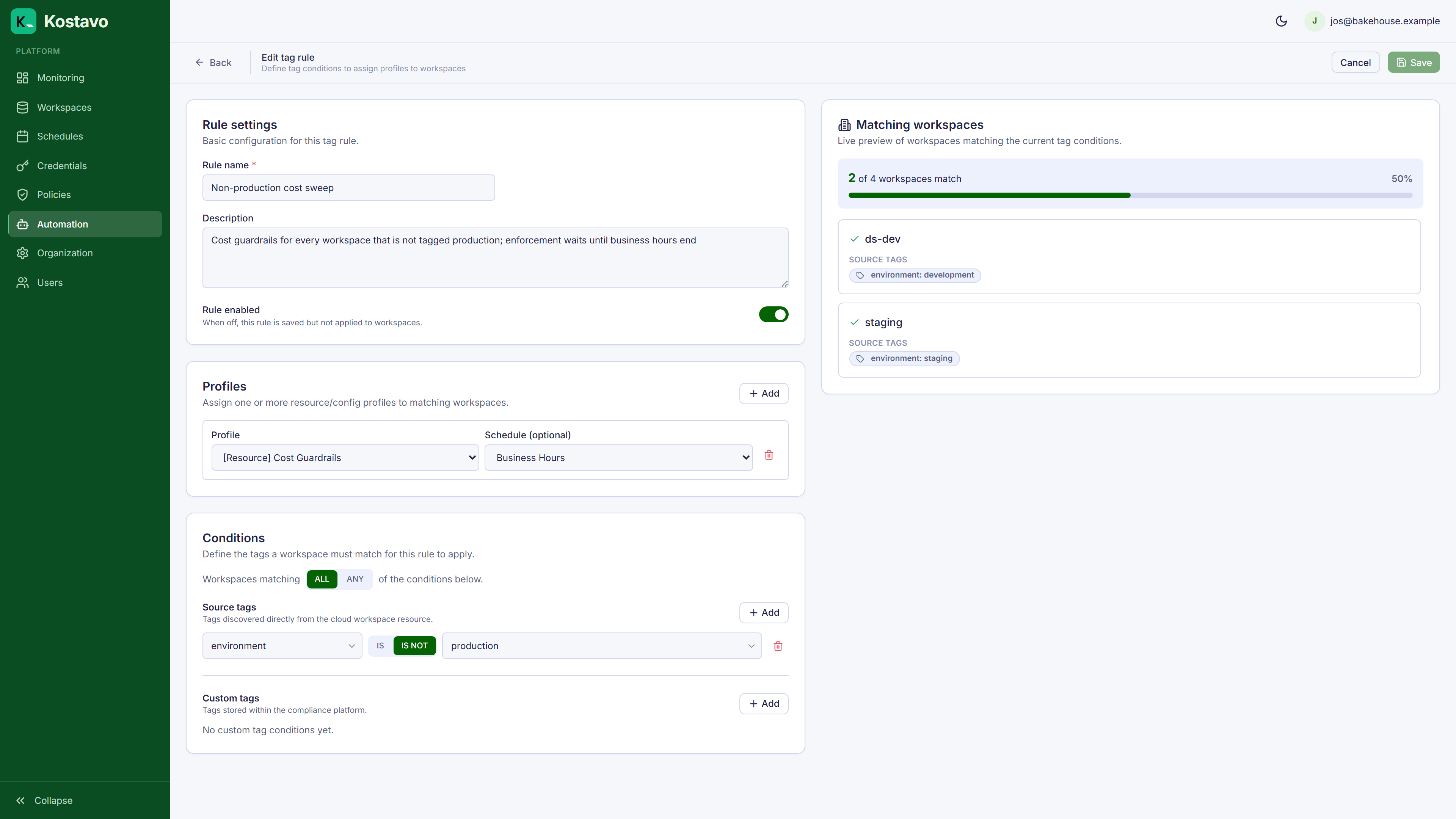
Creating a Tag Rule
- Navigate to Automation → Tag Rules
- Click Create Tag Rule
- Set name and match conditions
- Select the profile and optional schedule
- Save
- Use the match preview to verify which workspaces would match
- Run a sync to apply
Related
- Guide: Automate assignments with tags builds a tag rule end to end
- Concept: Workspace tags explains the tags rules match against
- Concept: Assignments covers how rule-created assignments behave