Policy Profiles
A policy profile is a named collection of resource policies and configuration policies with configured action modes and severity levels. Profiles define what Kostavo monitors and how it responds.
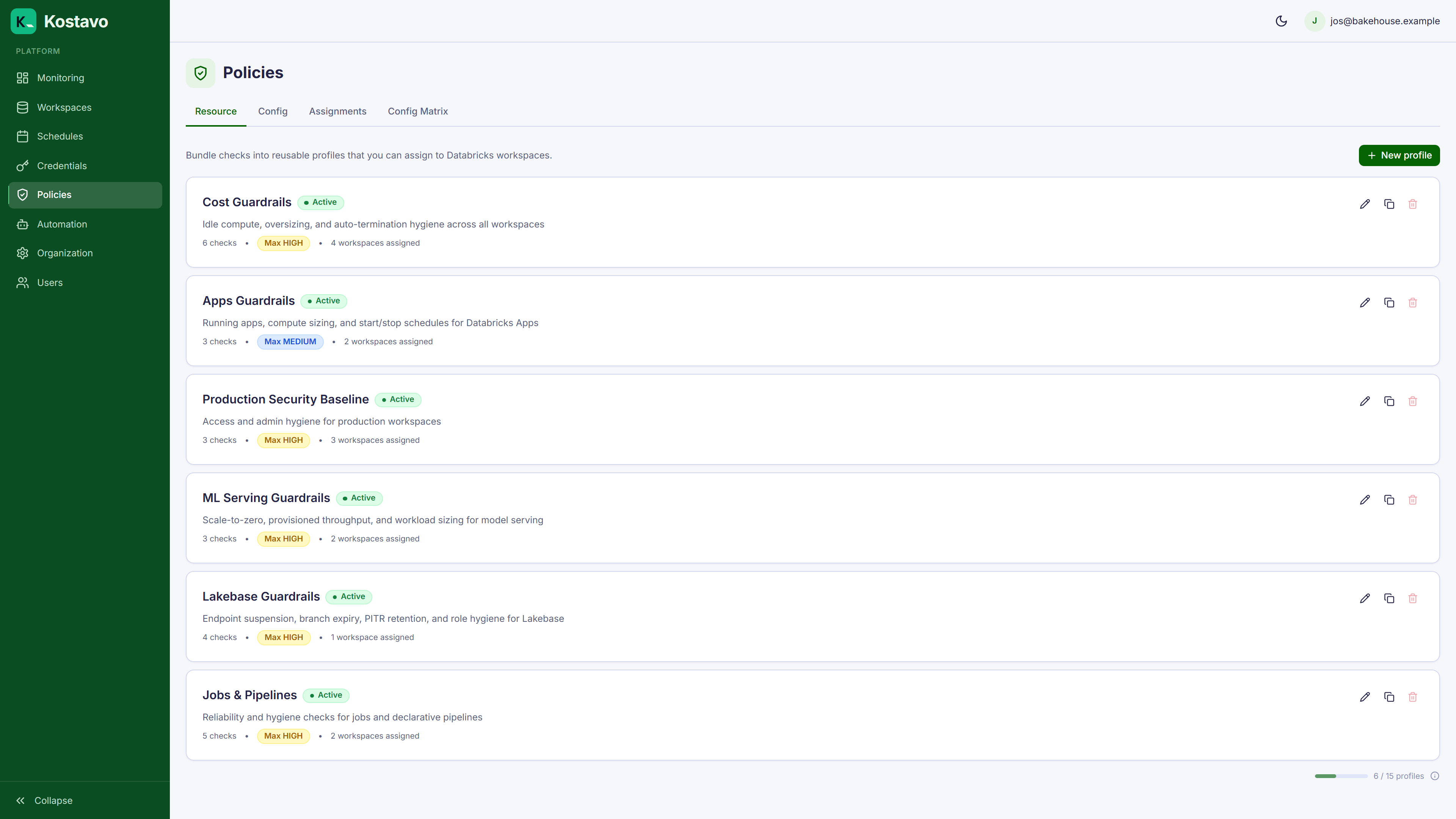
Profile Structure
Each profile contains:
| Field | Description |
|---|---|
| Name | Unique name within your organization |
| Description | Optional notes about the profile's purpose |
| Profile type | custom or template (created from a built-in template) |
| Enabled | Whether the profile is active |
| Resource policies | Individual resource policies in this profile |
| Configuration policies | Configuration baseline policies in this profile |
Resource Policies
Resource policies detect non-compliant Databricks resources (clusters, warehouses, jobs, pipelines, etc.) and optionally take corrective action.
Each resource policy within a profile has its own configuration:
| Field | Description |
|---|---|
| Policy type | Which policy to run (e.g., cluster_no_autotermination) |
| Action mode | NOTIFY, FIX, or REMOVE |
| Severity | critical, high, medium, or low |
| Exception list | Resource IDs to skip for this policy |
| Custom settings | Policy-specific configuration (thresholds, limits) |
| Notify creator | Whether to notify the resource creator |
| Notify admins | Whether to notify workspace admins |
Each policy type can only appear once per profile; you can't add the same policy twice.
Configuration Policies
Configuration policies compare workspace-level settings against a defined baseline and flag any deviation as a finding. They have their own concept page: see Configuration drift for how baselines, the settings compliance view, and the config matrix work.
Creating a Profile
From a Template
The fastest way to start. Go to Policies → Resource, click New profile, and pick a template.
Kostavo ships with 9 templates:
| Template | Focus | Default Modes |
|---|---|---|
| Dev Sandbox | Cost savings for dev workspaces | Mostly FIX, auto-stops idle resources |
| Production Monitoring | Visibility without intervention | 100% NOTIFY |
| Security Baseline | Token hygiene, encryption, access | NOTIFY |
| Security Deep Dive | Extended hardening policies | NOTIFY |
| Cost Optimization | Balanced cost reduction | Mix of FIX and NOTIFY |
| FinOps Aggressive | Maximum cost savings | Heavy FIX and REMOVE |
| Compliance Governance | Policy, tagging, logging | NOTIFY |
| Data Engineering | Job reliability, pipelines | NOTIFY |
| Platform Governance | Enterprise governance | NOTIFY |
When you create from a template, a full copy is made. You can then customize every policy: change action modes, adjust severity, add exceptions. You can also add configuration policies to any template-based profile.
Custom Profile
Same flow, but choose to start from scratch instead of a template. Then add individual resource policies and configuration policies, configuring each one.
Editing a Profile
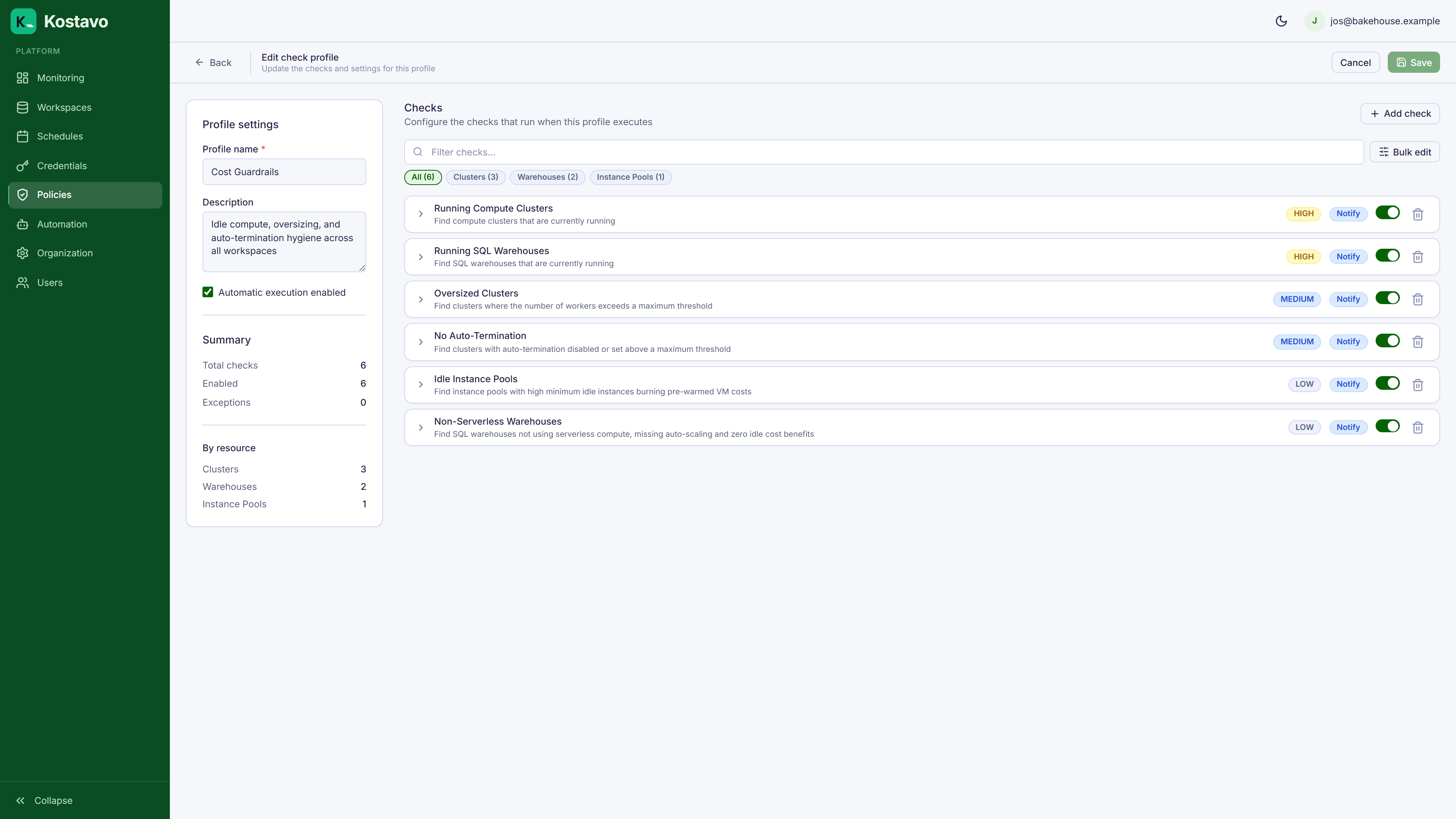
On the profile detail page, you can:
- Add resource policies: select from the full policy catalog
- Add configuration policies: define baseline settings to enforce
- Edit a policy: change action mode, severity, or custom settings
- Remove a policy: delete it from the profile
- Add exceptions: exclude specific resources from a resource policy
- Enable/disable: toggle the entire profile
Changes take effect on the next scan cycle.
Exceptions
Each resource policy configuration has an exception list: a set of Databricks resources to exclude. When a resource is in the exception list, the policy skips it entirely.
Use exceptions for known, intentional deviations. For example, if a specific cluster must remain running 24/7 by design, add it to the running_compute policy's exception list. For when to prefer an exception over suppressing individual findings, see Suppress vs exception.
Custom Settings
Many policies expose their thresholds as custom settings: the values that decide when a resource counts as non-compliant, such as how many workers make a cluster oversized or how many hours make a job long-running.
When you add or edit a policy in the profile editor, its custom settings appear as a form below the action mode and severity. Each field ships with a sensible default and a description of what it controls; you only change the ones your environment disagrees with.
Custom settings are per profile. The same policy can be strict in a production profile and lenient in a dev profile.
Key point: if a policy floods you with findings nobody acts on, tune its custom settings before lowering its severity or dropping it. The threshold is usually what is wrong, not the policy.
Deleting a Profile
Deleting a profile cascades and removes:
- All policy configurations in the profile
- All workspace assignments using the profile
- All findings, finding states, and execution history linked to the profile
- All tag rules referencing the profile
This is irreversible.
Related
- Reference: Policy catalog lists every available policy with its supported action modes
- Reference: Action modes explains Notify, Fix, and Remove
- Concept: Configuration drift covers the configuration policy side
- Concept: Assignments is how a profile reaches a workspace