Assignments
An assignment connects a policy profile to a workspace. Without an assignment, no policies run against a workspace.
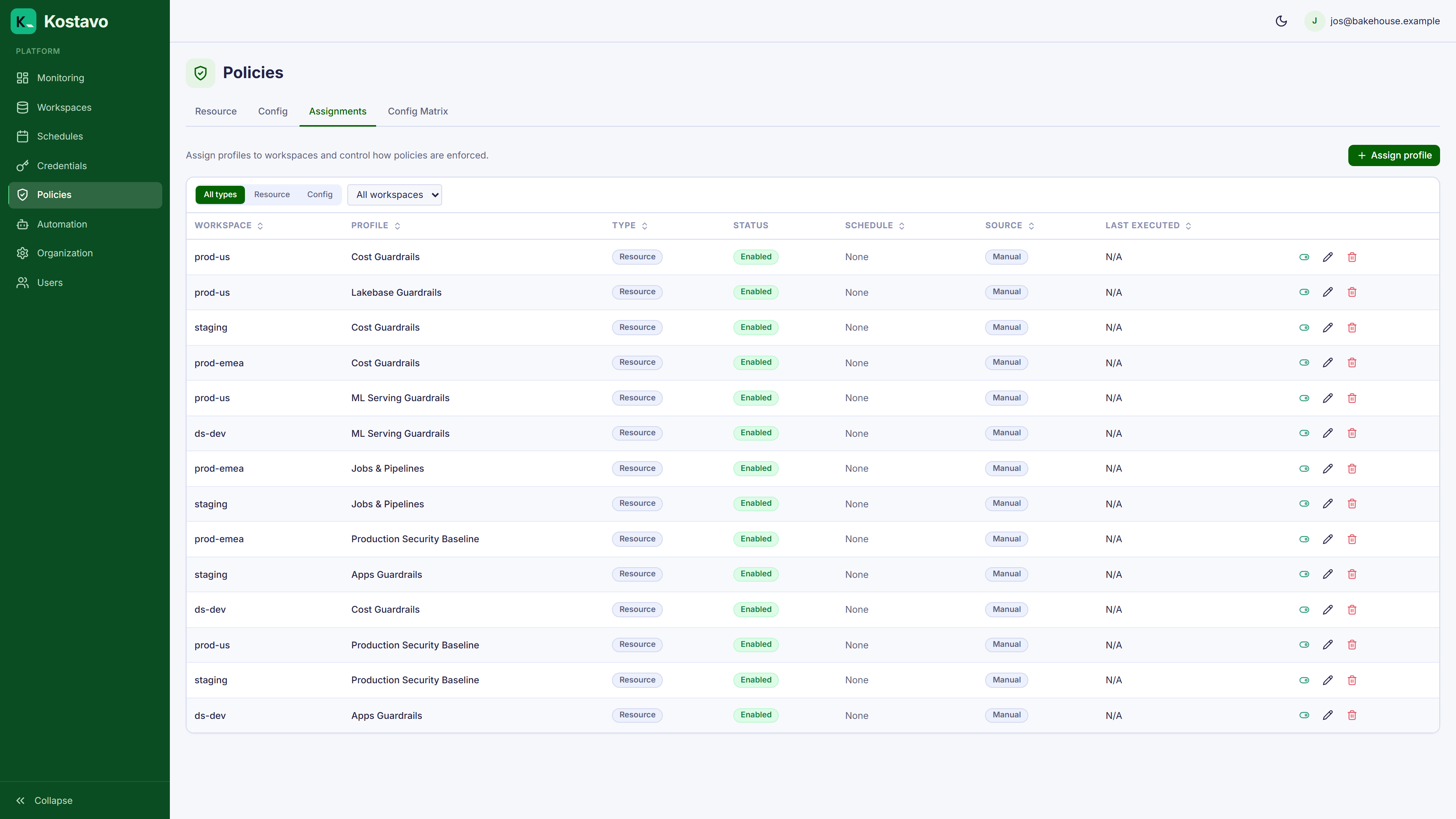
Creating an Assignment
Navigate to Policies → Workspace Assignments → Add Assignment.
Each assignment requires:
| Field | Description |
|---|---|
| Workspace | Which workspace to monitor |
| Policy Profile | Which profile's policies to run |
| Schedule (optional) | When to suppress automated actions |
A workspace can have multiple assignments, each with a different profile. This enables layered governance (e.g. a security profile and a cost optimization profile on the same workspace).
Bulk Assignment
Assign one profile to multiple workspaces at once:
- Go to Policies → Workspace Assignments
- Click Bulk Assign
- Select the profile and optionally a schedule
- Select the target workspaces
- Confirm
Manual vs. Automatic Assignments
| Source | Created By | Behavior |
|---|---|---|
| Manual | User action | Persists until manually removed |
| Tag rule | Automated via tag rules | Managed by rule sync; may be created or removed automatically |
Automatic assignments are linked to their tag rule and marked with assignment_source: tag_rule. They may be re-created on the next sync if you delete them manually.
Manual assignments are never affected by tag rule syncs.
Editing an Assignment
You can change the schedule on an existing assignment but not the profile or workspace. To change the profile, delete the assignment and create a new one.
Deleting an Assignment
Removing an assignment stops all policies for that profile-workspace pair. Historical findings and execution records are preserved.
Related
- Guide: Your first 30 minutes creates a first assignment end to end
- Guide: Automate assignments with tags sets up rule-managed assignments end to end
- Concept: Schedules explains the optional schedule on an assignment
- Concept: Policy profiles covers what an assigned profile actually runs