Schedules
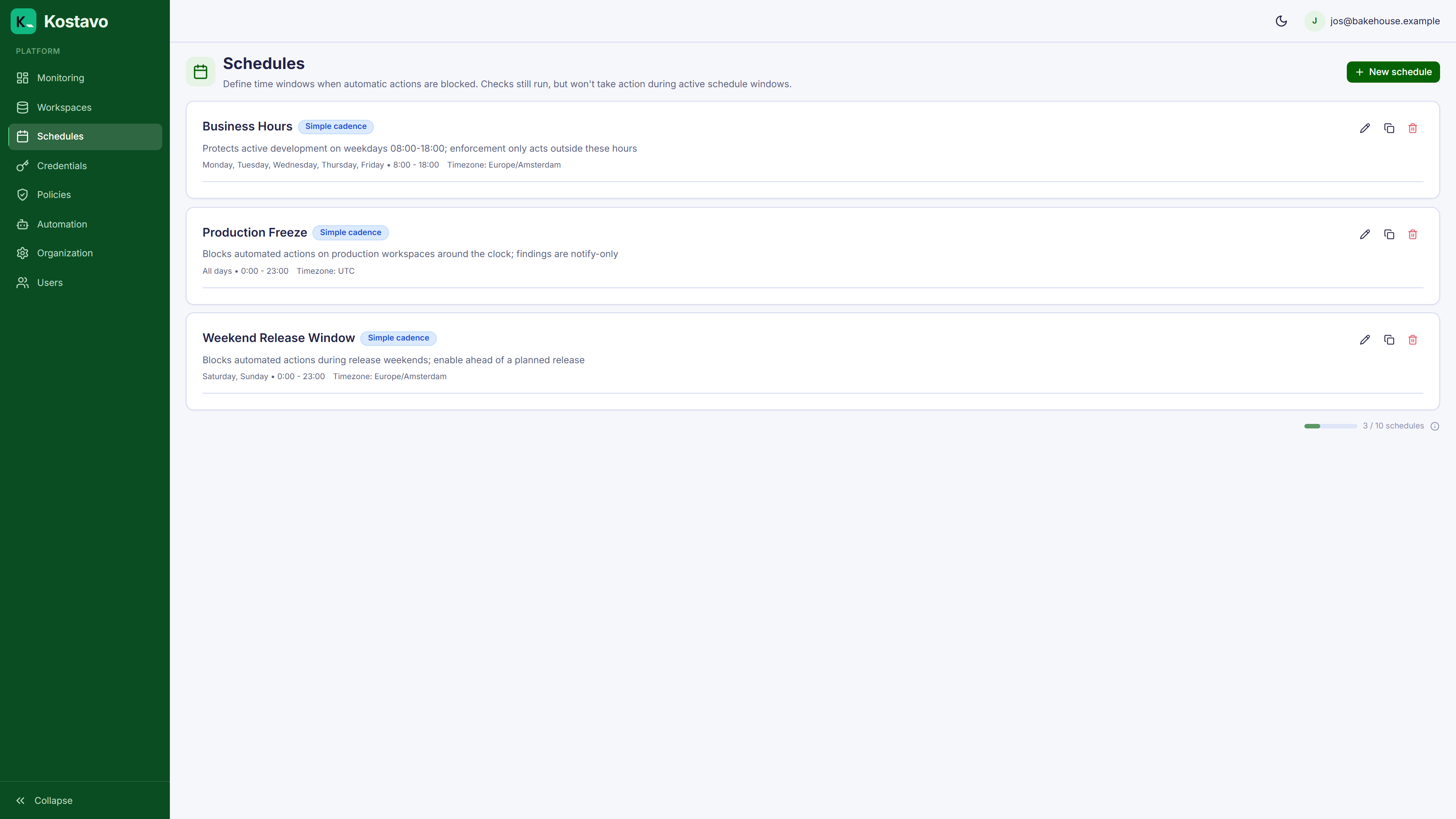
A schedule defines time windows during which automated actions (Fix, Remove) are suppressed. Policies always run; schedules only control whether actions are applied.
How Schedules Work
When a schedule is assigned to a workspace assignment:
- On every scan cycle, Kostavo evaluates the schedule
- The current time is converted to the schedule's configured timezone
- If the current time falls within the schedule's active window, the schedule is considered active
- When active, policies still execute and findings are recorded, but Fix and Remove actions are skipped
- When inactive (outside the window), actions proceed normally
Key point: Schedules protect resources during defined hours. They do not prevent monitoring, only automated changes.
Example
A schedule named “Business Hours” configured for Mon–Fri 9am–6pm EST:
| Time | Schedule Active | Policies Run | Actions Applied |
|---|---|---|---|
| Tuesday 2pm EST | Yes | Yes | No, actions skipped |
| Tuesday 8pm EST | No | Yes | Yes |
| Saturday 10am EST | No | Yes | Yes |
| No schedule assigned | N/A | Yes | Yes |
Schedule Types
Simple
Defined by:
- Days of week: e.g. Monday through Friday (0-4)
- Start hour / End hour: e.g. 9–18
- Timezone: e.g.
America/New_York
Overnight windows are supported: if end hour is less than start hour, the window wraps past midnight.
Daily Custom
For more granular control, define different time ranges per day using start/end times at minute precision:
Monday:    [{start: "09:00", end: "18:00"}]
Tuesday:   [{start: "09:00", end: "18:00"}]
Wednesday: [{start: "09:00", end: "12:00"}, {start: "14:00", end: "18:00"}]
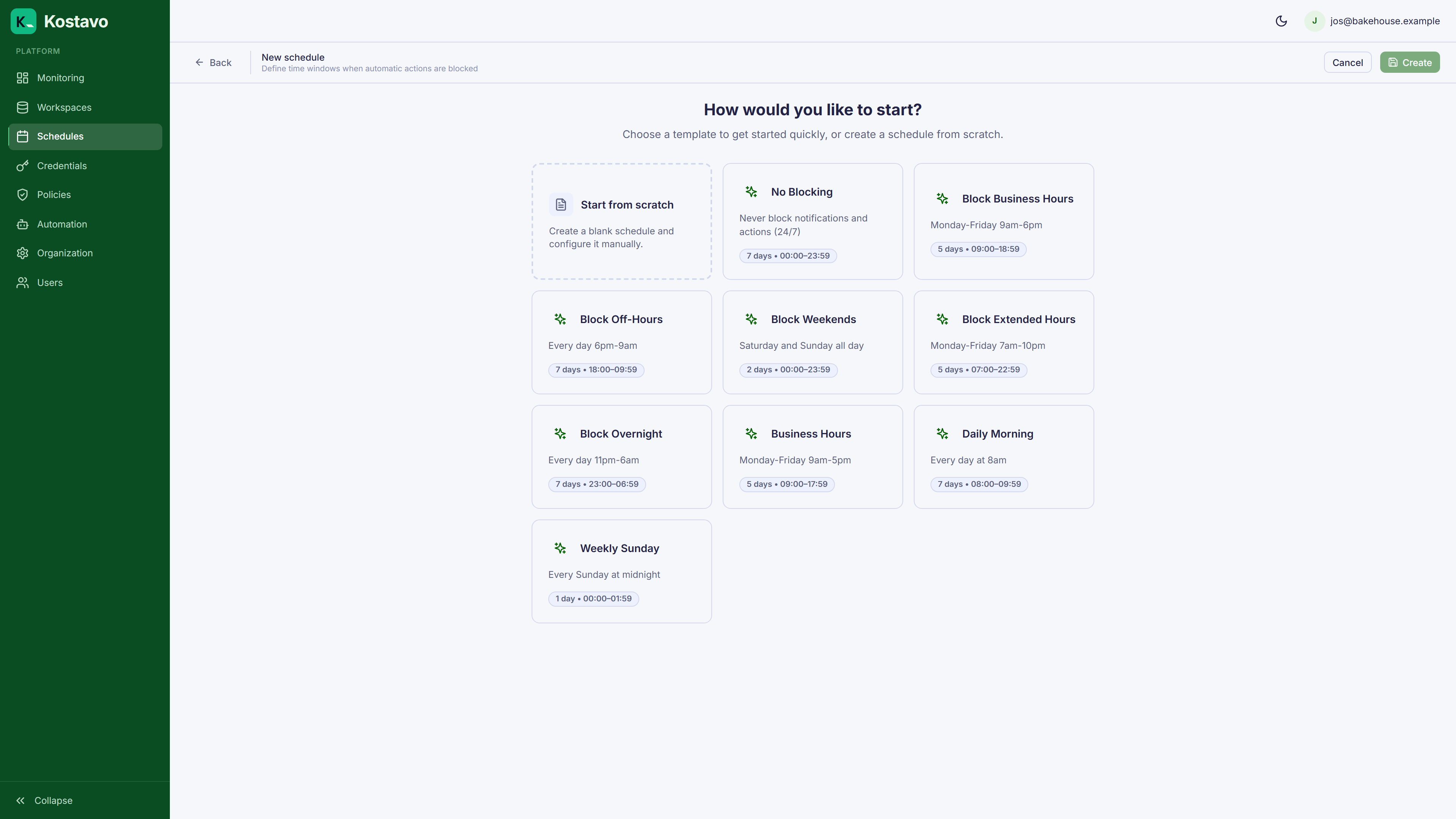
Schedule Templates
Kostavo provides pre-built schedule templates:
| Template | Window | Use Case |
|---|---|---|
| Block Business Hours | Mon–Fri 9am–6pm | Protect dev workspaces during work hours |
| Block Overnight | Daily 11pm–6am | Light overnight protection |
| Block Weekends | Sat–Sun all day | Weekend protection |
Create from a template via Schedules → New schedule. The template is copied; you can customize the days, hours, and timezone after creation.
Date Overrides
Schedules support date-level overrides:
- Excluded dates: force the schedule inactive on specific dates (e.g. company holidays when no one is working, so actions should run)
- Included dates: force the schedule active on specific dates (e.g. a Saturday where the team is working)
Timezone Handling
Each schedule has a single timezone. All times in the schedule are interpreted in that timezone.
- Daylight saving transitions are handled automatically; 9am local stays 9am local
- The organization's default timezone is used when creating new schedules, but each schedule can override it
- Use standard timezone names (e.g.,
America/New_York,Europe/London,Asia/Singapore)
Assigning Schedules
Schedules are linked to assignments, not directly to workspaces or profiles. When you create or edit an assignment, you can optionally select a schedule.
One schedule can be reused across many assignments.
Related
- Guide: Automate a weekend shutdown combines a schedule with Fix mode for cost savings
- Concept: Assignments is where schedules attach
- Reference: Action modes shows exactly which actions a schedule suppresses